


EDITORS NOTE: When you’re done, you may begin to write your article by doing Ctrl+A and deleting everything here
Lander, Mayflower —
RO-SPAN employs WordPress as its primary content-management tool for publishing articles. WordPress is an all-in-one platform that enables authors and editors to collaborate, manage content, and create visually engaging articles. This template provides a comprehensive overview of the features, tools, and best practices you’ll need to produce content.
Table of Contents
Interface Overview
When you open WordPress, you’ll see several key areas:

- Tool Bar – Allows you to insert blocks, undo or redo, and see open the Document Overview of your article
- Document Overview – Shows an explorer containing all of the blocks in the article, and the order they’re in
- Publishing Tools – Allows you to save a draft of your article, open up the Settings Panel, and publish the article.
- Settings Panel – Allows you to modify the settings of the article itself or the selected block
- The settings of the article include setting the featured image, categories, tags, and co-authors.
- Block settings are dependent on the type of media block
Building Blocks
By default, WordPress works in a block-format for the various medias you may try to integrate in your article. Blocks range from text, headers, images, videos, custom HTMLs, and more.
To add a block:
- Click the “+” (Add Block) button in the Tool Bar
- Search for the desired block type
- Click to insert it into your article
Blocks can be rearranged by dragging them within the work area, or by moving them within the Document Overview
Images

WordPress offers several ways to incorporate images into your article. By default, images will often appear separated from the text, and can take up a majority of the screen.

It is possible to make text wrap around images by selecting the image block, setting it to align left or right, and moving it above the paragraph(s) of the text you want wrapping around the image. Images can be uploaded to the RO-SPAN website directly; however, you can use an image URL (e.g. a imgur, gyazo, or discord link) as a alternative option.
It’s also generally advised that you link the images to itself. Doing so allows the user to click on the image and view it zoomed in.
Captions

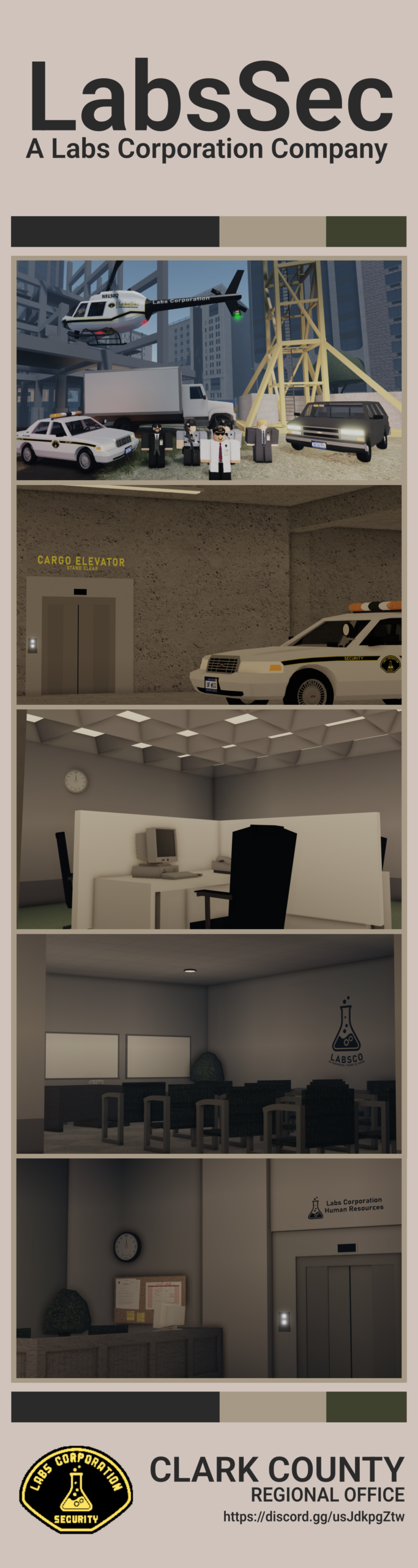
Images that you take should be captioned to describe the scene of said image and attribute copyright ownership:
Captions should follow AP style guidelines and provide context. Best practices include using present tense, identify people in the image (from left to right), describe the action within the image, and avoiding unnecessary editorializing or commentating.
All captions for images should include attributions of the original source of the image. If you took the image for RO-SPAN, then you would attribute the image in this manner:
(RO-SPAN Photos/YourName)
If the image was supplied by a third-party (e.g. indpendent photographer, private entity, government organization), you would attribute the image as so:
(Courtesy of Organization/PersonName)
Galleries
You may also create galleries of several images with the Gallery block like so:


Panoramas
If, for some reason, you know how to take panoramas, then feel free to do so:
Publishing Your Article
When you’re publishing, you will be mostly working in the Settings Panel under Post. These are the different things you can modify:
- Featured Image: This is the image that will appear on the homepage of the website as well as on the top of the article. It should always be a landscape image, and it’s generally advised to keep between 3:2 to 2:1 ratio.
- Excerpt: The excerpt appears on the homepage as well as the URL embed of the article on Discord. Generally, you do not have to manually add an excerpt as it should automatically do so from your first paragraph.
- Categories: Categories are used to allow users to sort articles on the website. You only select 1-2 categories.
- Tags: Tags appear on the homepage and currently only have an aesthetic purpose. You can use tags to provide more context for your article (e.g. “Photos”, “Opinion”).
- Authors: Allows you to add any co-authors who may of helped you write the article.
Before publishing the article, make sure to contact an editor or a peer to receive feedback. Make sure to check for any formatting mistakes by previewing the article. You can do this by pressing the computer icon in the Publishing Tools header.

 THIS WEEK'S TOP STORIES